How Orion Studio works
From a written script to a finished vertical video published on your own account.
The production pipeline
Orion Studio runs entirely on your own computer. Each step below happens locally, and you review the result before moving to the next one.
Write or generate the script
You write the script yourself, or let the application draft one from a topic you choose. Every draft is reviewed and approved by you before anything else happens — nothing is produced from an unapproved script.
Narration and subtitles
The approved script is turned into a voice-over using a text-to-speech provider you configure with your own credentials. The narration is then transcribed to obtain word-level timings, which produce subtitles that stay in sync with the audio.
Visuals
The application splits the script into scenes and finds a visual for each one from licensed stock libraries, or uses images and clips you supply yourself. You can replace any scene before rendering.
Render
Audio, subtitles, visuals and optional background music are composited into a single vertical video file on your machine. The finished file is yours: you can keep it, edit it elsewhere, or discard it.
Publish
When you choose to publish, the video is uploaded to the accounts you have connected, through each platform's official API. You decide which videos are published and when.
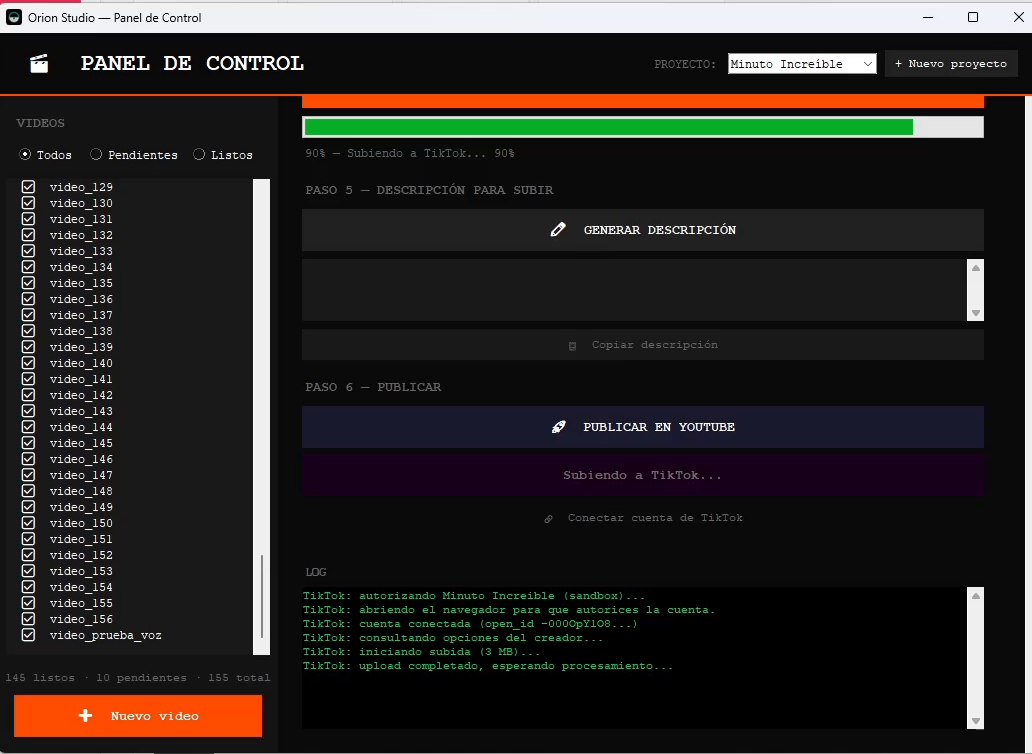
Connecting a social account
Orion Studio never asks for your social media password. Connecting an account works like this:
- You start the connection from inside the application.
- The application opens the platform's own authorization page — for example, TikTok's OAuth consent screen — in your browser.
- You log in on the platform's own website and review exactly which permissions are being requested.
- If you approve, the platform issues an access token. That token is written to a file on your computer and is never transmitted anywhere else.
- Orion Studio uses that token only to upload the videos you explicitly choose to publish.
Revoking access
You can disconnect an account at any time from the platform's own settings — for example, in TikTok under Settings → Security & permissions → Manage app permissions, or in your Google Account under Security → Third-party apps. Revoking access there immediately stops Orion Studio from being able to publish. You can also simply delete the local token file.
What Orion Studio does not do
- It does not post anything without an explicit action from you.
- It does not read, collect or store other users' content or personal data.
- It does not send your videos, scripts or tokens to our servers — there are no servers involved in producing or publishing your content.
- It does not buy, sell or exchange engagement of any kind.